Settings
A quick note on terminology before anything else. ms means milliseconds. 1000ms is one second. Your latency is your ping, the world-ms number WoW shows you in the network display. It comes up a lot below.
Installing GRIP-EMS is the easy part. The settings that determine whether your sequences feel smooth or stuttery are spread across three different WoW menus; none of them are set correctly by default, and most guides either skip them entirely or mention them once without explaining what they do. This page covers all of them and explains the why behind each one, because knowing why lets you tune them for your setup instead of just copying someone else's numbers.
Key Down Casting
Automatic as of v2.3.14
This is the WoW setting ActionButtonUseKeyDown. It controls whether your abilities fire when you press a key or when you release it. GRIP-EMS fires on the press, and it needs this set to on to work correctly. Leave it off, and your sequence either does not advance at all or advances on the wrong event, with an extra 50 to 100ms of dead time on every single press, eating into your rotation.
As of GRIP-EMS v2.3.14, this is no longer a preference or a manual step. The addon forces it on itself every time you log in, whether or not you have ever opened the settings. It has been removed from the CVar Health tab entirely since it is required for the engine to run, not something you weigh up. Run /gems status any time to confirm the live value.
Hold While Channeling
Added in v2.4.0 · Works on any channel as of v2.4.14 · Set per sequence version
This setting decides what happens when your keypress lands in the middle of a channel. Without it, a press mid-channel casts nothing and still burns a step, which is the same dead-step problem covered elsewhere on this page, just triggered by a channel instead of a cooldown. With Hold cursor on, a press landing mid-channel casts nothing and leaves the step counter where it was, so the channel finishes and the next real press picks up from the same step instead of one further along.
There is a third option, Hold + release at max, that ends an empowered spell the moment it reaches maximum rank rather than wasting time sitting at max charge while you keep pressing.
This matters beyond convenience. As of the v2.4.14 release, using Hold While Channeling properly is the addon author's own stated replacement for hand-writing [channeling] and [nochanneling] guards into your step conditionals: fewer characters spent on conditionals per step, and more consistent behavior than chaining bracket logic by hand. It does not remove the need for [combat], which still matters for the reasons covered on the How it works page.
If you are sequencing a charged or empowered spell like Fire Breath or Upheaval, Hold While Channeling, and specifically Hold + release at max, is now the first thing to reach for rather than the guard-step or separate-key workarounds on the Building sequences page. Those workarounds predate this fix and existed specifically to route around the automated-cancel hitch that Hold + release at max is built to solve directly. Try the setting first; fall back to the guard-step or separate-key approach only if it does not behave the way you need for your spec.
Spell Queue Window
Settings > CVar Health > Macro Sequencing
The WoW setting SpellQueueWindow. This controls how many milliseconds before a GCD ends WoW will accept your next cast input. Blizzard's default is 400ms, which is also the ceiling. WoW calls this Custom Lag Tolerance under Options > Network. GRIP-EMS surfaces it in CVar Health so you do not have to go hunting for it.
The way it works: say your GCD is 1.5 seconds. With SQW at 400ms, the queue window opens at 1100ms into that GCD. Any press inside that window gets queued. The last press before the GCD ends is the one that fires, replacing anything queued before it.
Dynamic SQW Optimiser
Settings > CVar Health
This is the setting that does the SQW math for you and keeps it updated as your connection moves around during a session. It continuously monitors your world latency, using a smoothed average sampled every 10 seconds, ignoring one-off spikes that would otherwise throw your numbers off. From that, it sets SQW to your current latency plus a configurable Safety Buffer, kept inside the 50 to 400ms ceiling.
So if your latency is 120ms and your Safety Buffer is 50ms, SQW lands at around 170ms. Your latency jumps to 160ms mid-key, SQW adjusts.
While the Optimiser is running, it has exclusive control over the SQW value. You will see "Managed by SQW Optimiser" in the manual control and the slider locks. If you want to set SQW by hand, turn the Optimiser off first.
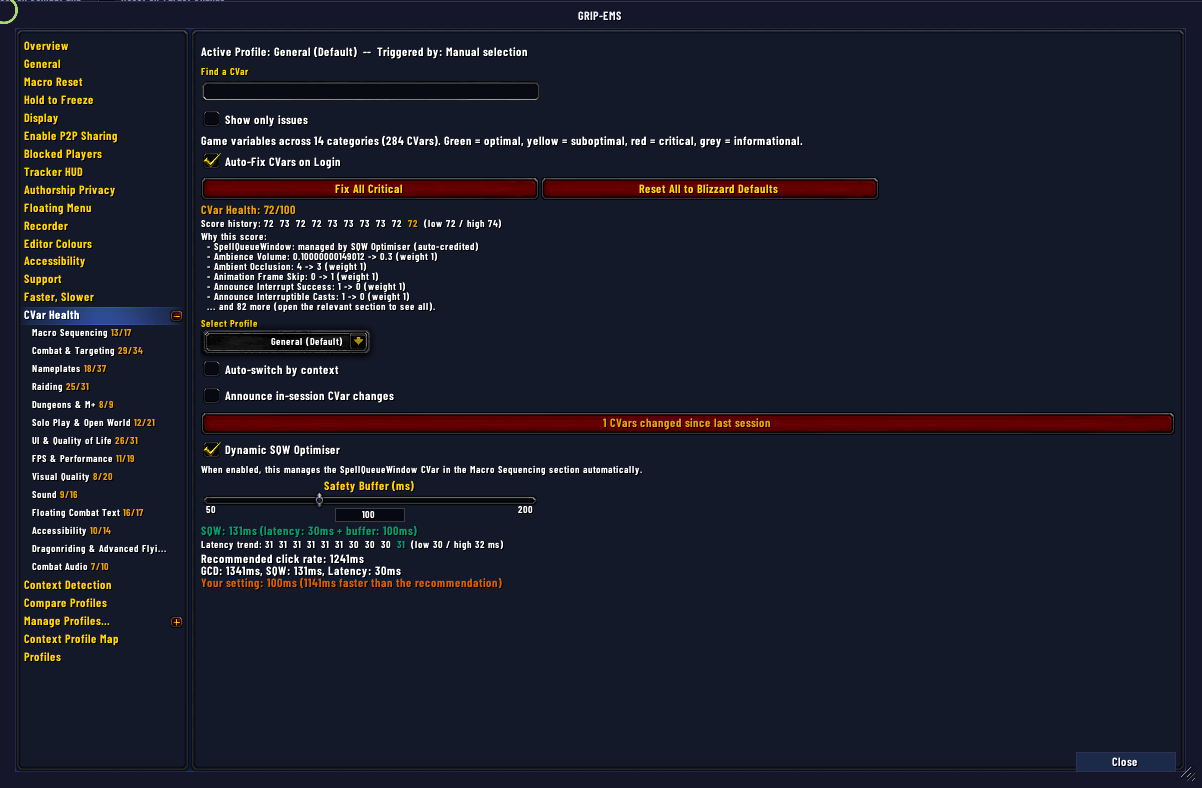
The Optimiser managing SQW automatically. The slider locks and shows "Managed by SQW Optimiser" while it's running.
Finding your way around CVar Health
Settings > CVar Health
As of v2.3.13, the CVar Health dashboard covers 255 game variables across 14 sections, up from 212 in earlier versions. New sections cover Combat Audio, nameplate content toggles, accessibility motion and vision settings, raid graphics mirrors, and dragonriding comfort options, alongside the SQW and Key Down Casting settings this page already covers in detail.
With that many CVars, finding a specific one by scrolling is no longer realistic, so the tab got a few navigation aids. A search box lets you type part of a CVar's name and jump straight to it. A show-only-issues filter hides every row that is already correctly set, so you see just what needs attention. Section headers are colour-coded, meaning a section containing a misconfigured row shows red before you even expand it, so you know where to look without opening every section in turn.
Numeric CVars, fifty of them, are sliders rather than typed fields, and on/off CVars are tickboxes. The graphics dropdowns pull their tier names directly from the game client, so options like shadow quality, SSAO, and liquid detail match the wording in WoW's own System menu instead of using GRIP-EMS's own labels. maxFPS now goes up to 144.
The Delve CVar profile
Automatic as of v2.3.12
GRIP-EMS ships with built-in CVar profiles that swap automatically based on the content you are in, and as of v2.3.12 Delves get their own dedicated profile rather than running on the same baseline as general open-world content. Before this, a Delve run used your General graphics profile even though the addon already knew you were inside a Delve, which meant nameplate range and soft-targeting were tuned for the wrong context.
The built-in Delve profile turns on enemy minion nameplates, extends nameplate range to 41 yards, and widens the soft-target arc, all automatically the moment you enter a Delve, at any tier, with no setup required on your part.
Click Rate
Settings > General
How fast you are pressing your sequence key, in milliseconds. GRIP-EMS advances one step per keypress and does not cap how fast you press, so this number is really a reference point that also controls the timing of any imported pauses in a sequence. The default is 250ms, and the slider will not go below 100ms.
The reason it floors at 100ms is that nobody is realistically pressing a key faster than ten times a second, and at that speed, you would be running past steps before the spells they contain can land. GRIP-EMS calls 100ms the human and hardware floor.
Per-Character Click Rate, under the same menu, is a setting scoped to your current character only and overrides the global value while that character is active. Range is 0 to 1000ms in steps of 10. Set it to 0 to fall back to the shared global value. This is also the only way to go below the 100ms floor if you have an edge case that needs it, down to 10ms. GRIP-EMS will pop a warning on screen when you drop under 100.
Keybind Conflicts
Added in v2.4.0 · /gems keys or the Keybind tab
Run /gems keys, or click Check Conflicts on the Keybind tab, and GRIP-EMS checks every key your sequences use, plus vehicle and pet battle slots, against your saved bindings: what the keypress actually reaches, cast-redirect modifiers, and click bindings. Where it can identify the addon behind a conflicting binding, it names it directly, and it clears two known kinds of conflict for you automatically.
This is the tool for the recurring question of why a key works on one character and does nothing on another. Different characters can carry different addon-set or click bindings on the same physical key, and this check surfaces that instead of leaving you to hunt through every addon's keybind panel by hand.
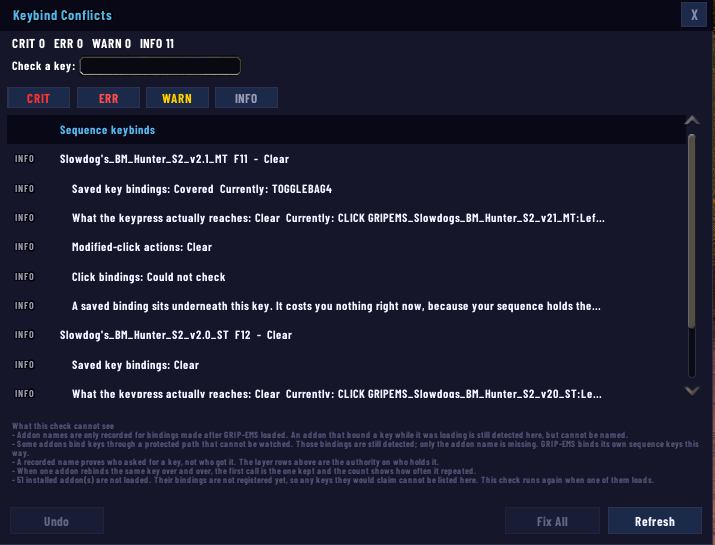
Check Conflicts run against a sequence's key. It names whatever else has claimed the bind, including the modifier combinations.
/gems keys again and use Undo, which backs out the last change if something else grabbed the key in the meantime.Tempo Advisor
Settings > Faster/Slower
This is a different system from the SQW Optimiser above, and it is worth being precise about the difference because the two get confused constantly in the Discord. The SQW Optimiser tunes a WoW CVar based on your latency. The Tempo Advisor analyses your actual sequence and your actual play to recommend a click rate, in milliseconds between keypresses, that fits how that specific sequence is built and how you actually play it.
It starts from a theoretical estimate the moment you save a sequence: it classifies every spell into one of seven timing categories (off-GCD, on-GCD instant, on-GCD with a cast time, a long cast, a channel, a pause step, or unknown if the spell data is not cached yet), builds a transition graph between your steps, and sums GCD durations and cast times across that graph to estimate the time between presses your sequence actually needs.
That estimate gets more accurate the more you play. After 30 logged samples from the addon's execution tracer, the Advisor blends real combat data into the recommendation at a 70% theoretical, 30% empirical mix, and discards stale samples automatically so an old patch or a respec does not keep skewing the number. Every sequence stores its own recommendation, sample count, and blend ratio, and it persists across sessions rather than resetting every login.
Turn it on and a movable Faster/Slower overlay shows your current click rate against the recommendation, with a delta bar so you can see at a glance how far off you are. There is an optional rolling CPS sparkline if you want to watch your actual clicks per second over the last few presses, and an opt-in audio alert that plays a sound if your rate drifts too far from the recommendation, useful if you are not watching the overlay during a pull.
/gems fsShow current Tempo Advisor status/gems fs onEnable the Faster/Slower overlay/gems fs offDisable the overlay/gems fs resetClear stored data for a sequence and start fresh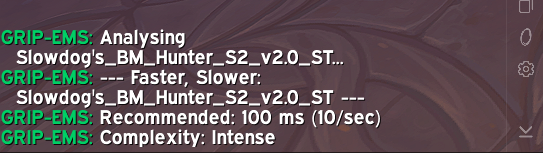
A Tempo Advisor readout in chat, showing the recommended click rate for the sequence actually being played.
Spell Cache Viewer
/gems spellcache
The cached spell data GRIP-EMS uses for icon resolution, autocomplete, and the Tempo Advisor's spell classification all lives in one place you can inspect directly. Run /gems spellcache, search by spell name or spell ID, and see exactly what the addon has resolved it to: the icon and the spell ID behind that name.
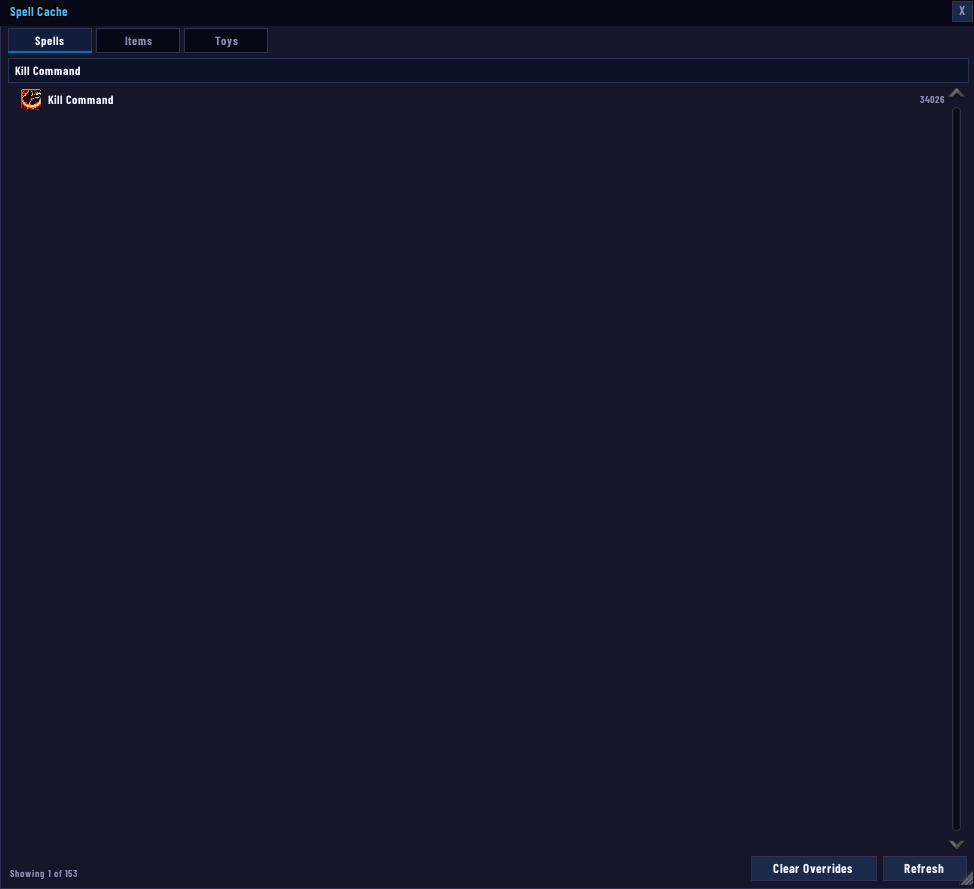
The Spell Cache Viewer. It's a lookup of name-to-icon-and-ID, not a tooltip — there's no cast time, cooldown, or spell school breakdown here.
This is the tool to reach for when a spell icon is not resolving on your tracker or action bar, or when the Tempo Advisor is classifying a spell as unknown instead of one of its real timing categories. A stale or missing cache entry, usually from a spell getting renamed or reworked in a patch, is the most common cause of both. Search for the spell here first before assuming something is broken in your sequence itself.
The cache populates on login and updates automatically when you change spec or talents. If a spell is genuinely missing rather than just stale, /gems revalidate forces a fresh re-tag of every sequence with current spell IDs, which usually resolves it.
Outside programs: AHK, iCue, Synapse, and others
External programs that send repeated keypresses work fine with GRIP-EMS. A full keypress is a down event followed by an up event. Your program needs to send both. GRIP-EMS fires on the key-down signal specifically, so a program that sends only an up event or a custom hold signal will not trigger the sequence correctly.
For interval settings: one full keypress every 50ms or slower is a sensible floor. Randomizing slightly, say between 50 and 75ms rather than a fixed number, produces cleaner behavior than a perfectly robotic fixed interval. The click rate guidance above applies here, too. Faster is not better past the point where your spells can actually land.
The key-down requirement is the only thing that is not optional. Everything else is tuning.
How these settings connect
The outside program sends keypresses at the rate you set. GRIP-EMS turns each keypress into one sequence step. The GCD is the actual ceiling on how fast spells can land, regardless of how fast you press. SQW controls the window in which your next press is queued into that GCD, and the SQW Optimiser ties that window to your real latency so it is always sized correctly for your connection. The Tempo Advisor is the layer above all of that: it watches your specific sequence and your actual play to tell you the click rate that fits both.
Key Down Casting takes care of itself as of v2.3.14, so let the Optimiser handle SQW, and let the Tempo Advisor tell you where to set your click rate once it has enough data on you. Everything else on this page is fine-tuning from there.